

Navigation Menu

When you touch  on the navigation screen or the multi
screen, the navigation menu (main menu) appears. You can access all
of the software's functions from this menu.
on the navigation screen or the multi
screen, the navigation menu (main menu) appears. You can access all
of the software's functions from this menu.
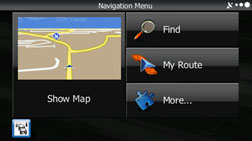
The following options are available.
Touch
 , and then select which method to use
to reach your destination by entering the address, selecting a favourite
spot, selecting a position on the map, or selecting from the destination
list. You can also select recent destinations from Smart History,
or enter coordinates into the system.
, and then select which method to use
to reach your destination by entering the address, selecting a favourite
spot, selecting a position on the map, or selecting from the destination
list. You can also select recent destinations from Smart History,
or enter coordinates into the system.
When you touch
 , each point on
the route, or a path log on the map is displayed for the entire journey.
You can also perform various route related functions such as editing
or cancelling the route, setting the route departure point, selecting
a different route, avoiding a part of the route, performing a navigation
simulation, or adding an entry to the destination list.
, each point on
the route, or a path log on the map is displayed for the entire journey.
You can also perform various route related functions such as editing
or cancelling the route, setting the route departure point, selecting
a different route, avoiding a part of the route, performing a navigation
simulation, or adding an entry to the destination list.
When you touch
 , you can set the
navigation software operating method, start the tutorial, show a demo
route simulation, or start various other auxiliary applications.
, you can set the
navigation software operating method, start the tutorial, show a demo
route simulation, or start various other auxiliary applications.
Touch
 to start navigation on the map. The
button itself shows the current position, recommended route, and reduces
the surrounding area to display on the map being used. Press the button
to enlarge the map to full-screen size.
to start navigation on the map. The
button itself shows the current position, recommended route, and reduces
the surrounding area to display on the map being used. Press the button
to enlarge the map to full-screen size.
Touch
 to open the Traffic Summary screen.